Writing Japanese on Linux
For the screenshots, we tested it on Mint. However, the solution is actually very similar on any desktop based Linux distribution.
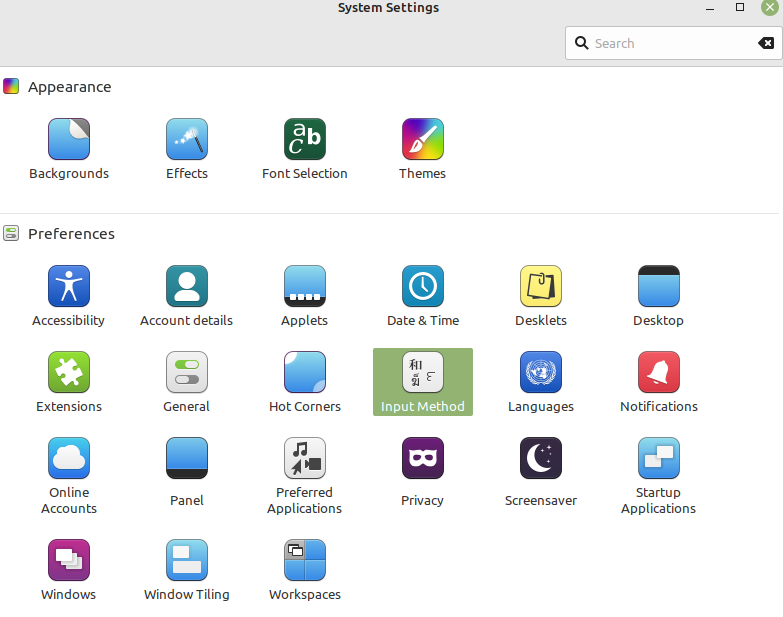
In the System Settings select "Input Method":
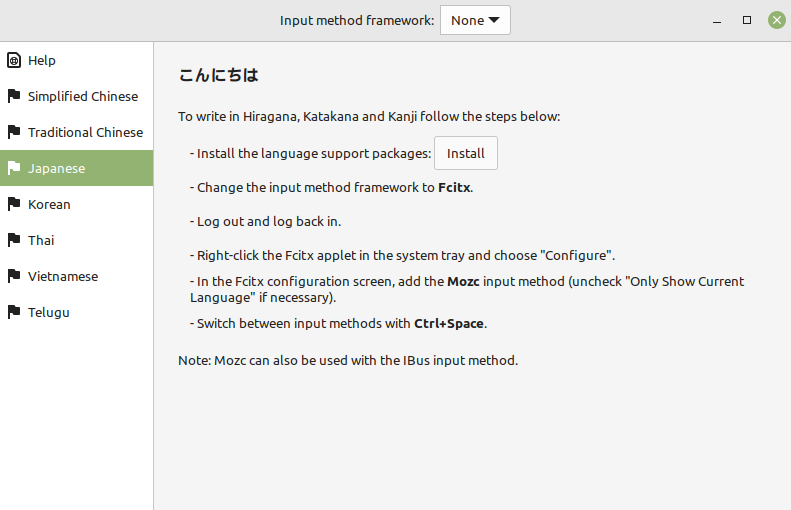
Select Japanese and select "install" in order to install the language support packages:
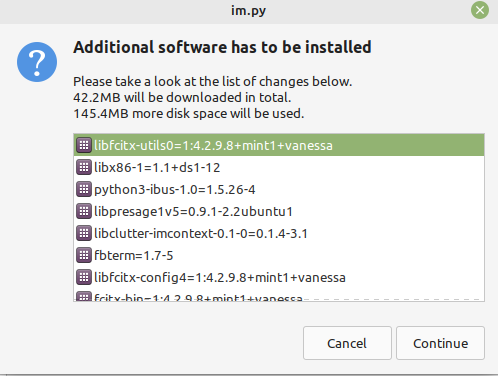
For additional software press "continue":
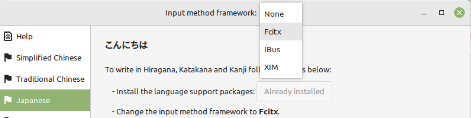
Now, for the Input method framework, select Fcitx:
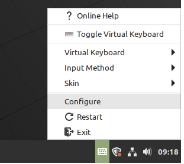
Select the keyboard icon in the task bar and then select "Configure".
Add Mozc as a new Input Method:
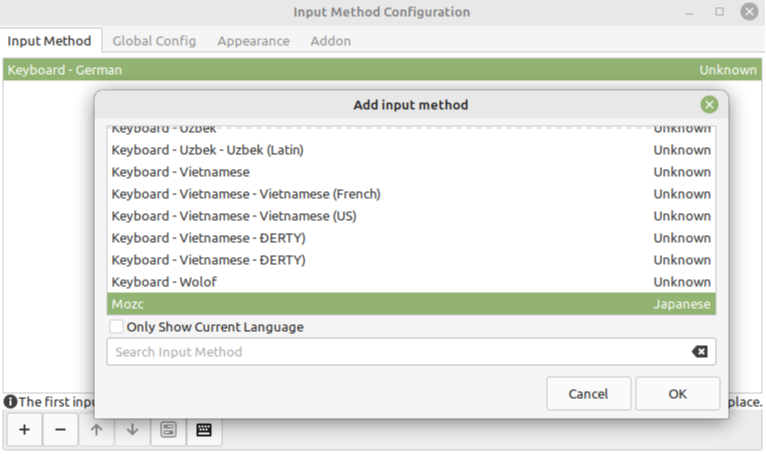
In order to find Mozc you might have to toggle "Only Show Current Language".
After that, restart the system.
Open your favourite editing tool, e.g. LibreOffice writer.
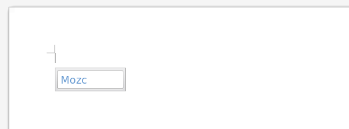
With Ctrl-Space change to Mozc:
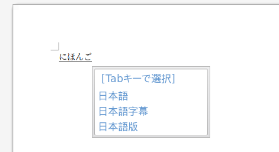
Now you can enter Latin letters, which will be converted into Japanese. Depending on what you wrote, you will get different proposals of which you can choose:
Note that, while you are writing in Mozc mode, the keyboard icon in the task bar changes its appearance: